
The Official Standardized Catawba Keyboard
Welcome to the new home of the Official Catawba Language keyboard developed by the Catawba Cultural Centre for students of the language, language champions, and language teachers.
The Version 3.0 keyboard code has been improved, and the superscipt ‘h‘ is now available as required for the Official Language Standards as well as all the other unique keys required to type in the language.
Please read and download the Catawba Keyboard Usage Documentation to learn the unique letters and pronunciation symbols needed to communicate through writing in the language.
The specific files you need to download and install the keyboard on your device are below. Installation instructions are included in the download packages and also as links on this page.
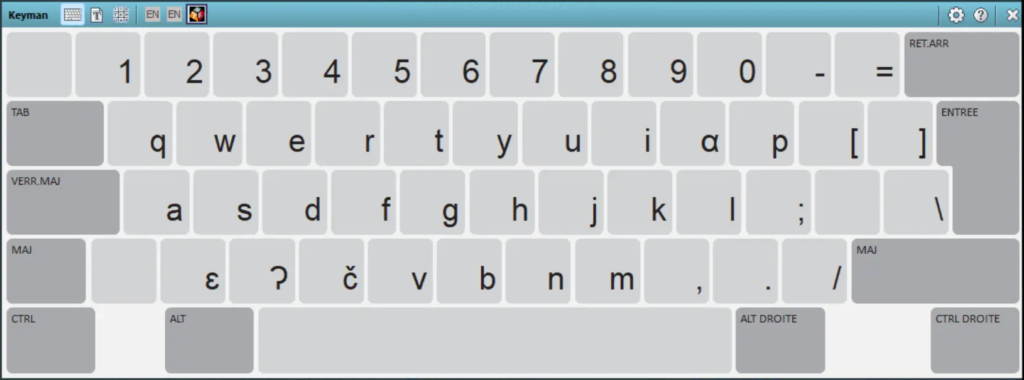
Desktop devices
For Windows
Download Keyman for Windows. Next, you need to download the Catawba .kmp file that contains everything you need to set up the Official Standardized Catawba Keyboard on your device. Go to your Downloads folder in File Manager, open the Keyman application and install the program by following the steps provided by the installer.
For macOS
Download Keyman for macOS. The file name will be keyman-xx.x.xxx.dmg with the x’s signifying the current version. Next, you need to download the Catawba .kmp file that contains everything you need to set up the Official Standardized Catawba Keyboard on your device. Go to your Downloads folder in Finder, open the Keyman application and install the program by following the steps provided by the installer. You may see a screen saying “Install Keyman.app” is an app downloaded from the Internet. Are you sure you want to open it? Click “Open” and proceed with the installation.
You will then see a screen that says “Allow “Install Keyman” to enable “Keyman”?” Click “Allow”. You will then get a window advising that Keyman is successfully installed. Click OK.
Now return to Finder and your Downloads folder. Open the catawba_keyboard_v3_keys.kmp file. You will be asked if you want to install the keyboard. Click “Install”. You will see the Keyman Configuration sceen and the catawba_keyboard_v3 listed.
If the check box is empty, click it now, then close the window. You will see your standard keyboard appear in the Menu Bar at the top of your screen. Users using a US keyboard will see “US”. Click on this. You will see the Keyman option right underneath “US”. Click on it. You will see that catawba_keyboard_v3 has a check mark beside it. You are now ready to type using Catawba characters. To go back to the “US” keyboard click the Keyman symbol in the Menu Bar and you are done.
Android
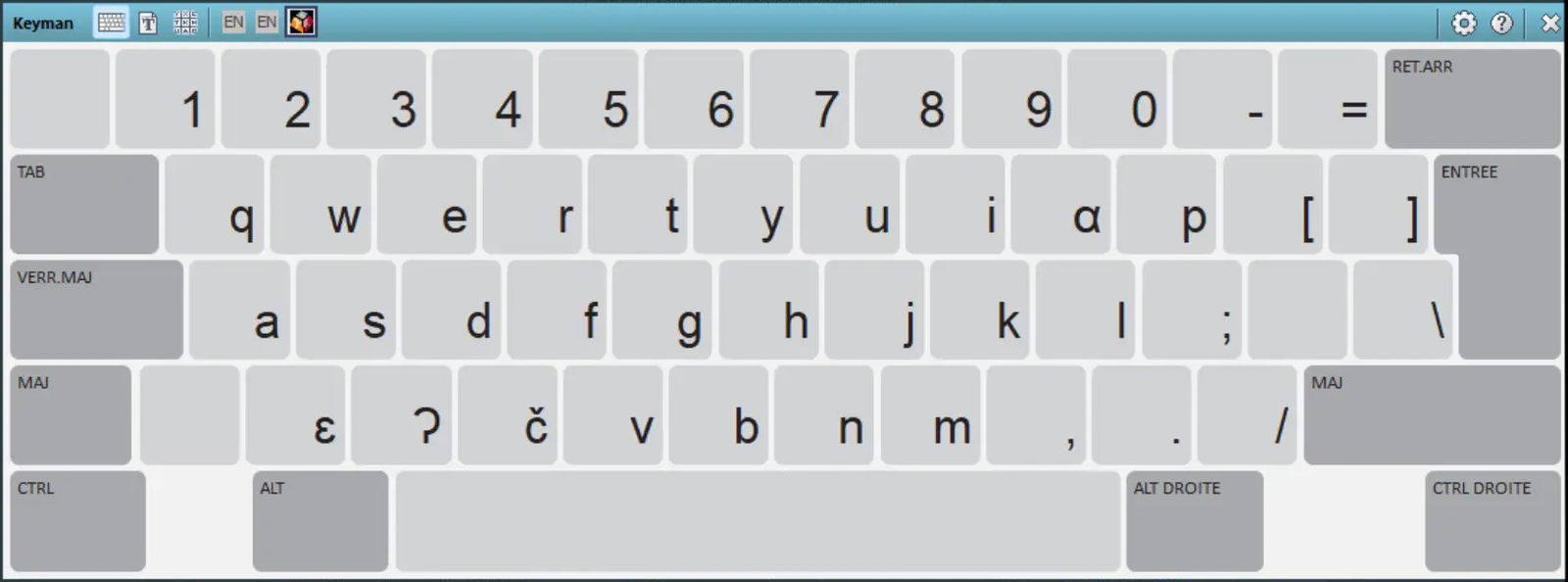
For Android, go to Google Play and search for Keyman for Android. Click on the keyboard image to the right. Follow the steps to install the app. Once it is installed, close it or leave Settings. Then proceed to the steps below to download the ecatawba.kmp file. Once downloaded, click on that file, and a Keyman page will appear. The word “Install” appears in the upper-right corner of the screen. Select install. Then the word “Done” appears in the upper right corner of the screen. Select Done. A new Keyman screen appears and in the bottom left of the screen is a globe symbol with a notice. Click on the globe, and a new screen appears where you can select the Catawaba keyboard or your regular keyboard. This is where you select the keyboard you wish to use for any specific situation.
iPhone/iPad
To set up Keyman on your iPhone or iPad, open the App Store and search for Keyman. You can also scan the QR Code to the right. After installing Keyman, close it and click on the Catawba.kmp file link or the keyboard to the right. When prompted, select “Install.” Then, go to “Settings,” type “keyboard” in the search bar, and open Keyboard settings. Choose “Add New Keyboard,” find “Keyman,” and select it to install your Catawba keyboard. To use it in apps like Mail, tap the globe icon next to the space key. This will switch to the Catawba keyboard, replacing your regular keyboard.
Note: iPhone/iPad users need to touch the caps key twice before typing a letter to produce a capital letter. It is an Apple idiosyncrasy.
Now download the Catawba .kmp file that contains everything you need to set up the Official Standardized Catawba Keyboard on your device. You can also scan the QR Code to the right.